If your Mac is running slow, full of clutter, or you’re planning to sell it, learning how to factory reset MacBook Air can save you time and headaches. A proper reset wipes your data, restores macOS to its original state, and gives your device a clean start.
In this guide, you’ll learn the exact steps to reset your MacBook Air safely, including how to factory reset MacBook Air without a password and instructions that work for models from 2013 to 2020, including the MacBook Air 13-inch.
When Should You Factory Reset Your MacBook Air?
A factory reset isn’t something you do casually. It’s useful when:
-
Selling or giving away your Mac
-
Fixing serious performance issues
-
Removing malware or system errors
-
Starting fresh after years of use
-
Preparing the device for a new user
If your MacBook Air feels sluggish or unstable, a reset often brings it back to life.
Before You Reset: Important Preparation Steps
Skipping prep is the fastest way to lose important data. Do this first:
1. Back Up Your Data
Use Time Machine or iCloud to save:
-
Documents and photos
-
App data
-
Desktop and Downloads
2. Sign Out of Apple Services
Go to System Settings (or System Preferences) and sign out of:
-
iCloud
-
iMessage
-
FaceTime
This prevents activation issues for the next user.
3. Deauthorize Your Mac (Optional)
Open the Music app → Account → Authorizations → Deauthorize This Computer.
How to Factory Reset MacBook Air (All Models)
These steps work for most Intel-based MacBook Air models (2013, 2014, 2015, 2017, 2018, 2019, 2020).
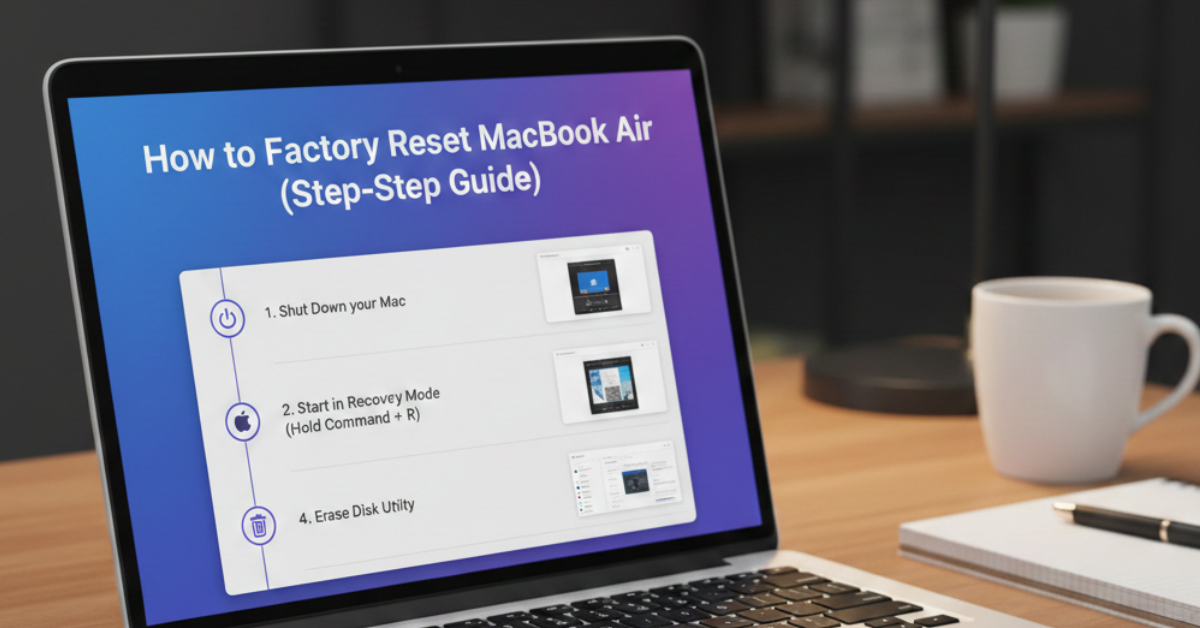
Step 1: Restart in macOS Recovery
-
Shut down your Mac.
-
Turn it on and immediately press and hold:
Command (⌘) + R -
Release when the Apple logo appears.
You’ll enter macOS Recovery Mode.
Step 2: Erase the Disk
-
Select Disk Utility.
-
Click Continue.
-
Choose your startup disk (usually Macintosh HD).
-
Click Erase.
-
Format:
-
APFS (for macOS High Sierra or later)
-
Mac OS Extended (Journaled) for older systems
-
-
Click Erase again.
Your Mac is now wiped clean.
Step 3: Reinstall macOS
-
Close Disk Utility.
-
Choose Reinstall macOS.
-
Follow the on-screen instructions.
-
Connect to Wi-Fi if prompted.
Once installation finishes, your MacBook Air will restart like a brand-new device.
How to Factory Reset MacBook Air Without Password
If you forgot your login password, don’t worry.
Method: Use Recovery Mode
-
Turn off the Mac.
-
Press Command + R while turning it on.
-
Open Disk Utility.
-
Erase the startup disk.
-
Reinstall macOS.
This method works for most cases of how to factory reset MacBook Air without password.
If Find My Mac is enabled, you may need your Apple ID during setup.
Model-Specific Notes (2013–2020)
The process is largely identical, but here are quick references:
-
How to factory rest MacBook Air 2013 / 2014 / 2015
Use Command + R. Format as Mac OS Extended if running older macOS. -
How to factory reset MacBook Air 2017
Same Intel-based steps. Supports APFS if updated. -
How to factory rest MacBook Air 2018 / 2019 / 2020
These models may include the T2 security chip.
If Recovery fails, use Option + Command + R for Internet Recovery. -
How to factory reset MacBook Air 13-inch
The rest process is identical regardless of screen size.
Alternative: Internet Recovery Mode
If local recovery isn’t available:
-
Turn off the Mac.
-
Press Option + Command + R while powering on.
-
Connect to Wi-Fi.
-
Follow the same erase and reinstall process.
This installs the latest compatible macOS.
Common Mistakes to Avoid
-
Not backing up data before erasing
-
Forgetting to sign out of iCloud
-
Interrupting macOS installation
-
Choosing the wrong disk format
-
Resetting without stable internet
Take your time—rushing causes problems.
FAQs
How long does it take to factory reset a MacBook Air?
Usually 30 minutes to 1.5 hours, depending on internet speed and macOS download size.
Can I factory reset my MacBook Air without Apple ID?
Yes, but if Activation Lock is enabled through Find My, you’ll need the Apple ID during setup.
Will factory reset remove viruses?
Yes. Erasing the disk and reinstalling macOS removes malware and corrupted system files.
Does factory reset improve performance?
In many cases, yes. It removes clutter, background apps, and system errors.
What if Command + R doesn’t work?
Try Option + Command + R for Internet Recovery.
Conclusion
Now you know exactly how to factory reset MacBook Air, whether you’re preparing it for sale, fixing performance issues, or starting fresh. The key steps are simple: back up your data, enter Recovery Mode, erase the disk, and reinstall macOS.
Follow the process carefully, and your MacBook Air—whether it’s a 2013, 2015, 2017, or 2020 model—will be running like new. If you’re planning to keep the device, consider reinstalling only essential apps to maintain speed and performance.