Ever blocked a number in a moment of frustration—then later wondered how to find it again? If you’re trying to figure out how to see blocked numbers on iPhone, you’re not alone. Apple makes blocking calls and messages easy, but the list isn’t always obvious unless you know where to look.
In this guide, you’ll learn exactly where to find your blocked numbers, how to manage them, and what happens when you block or unblock someone. Let’s keep it simple, practical, and straight to the point.
Where to Find Blocked Numbers on iPhone
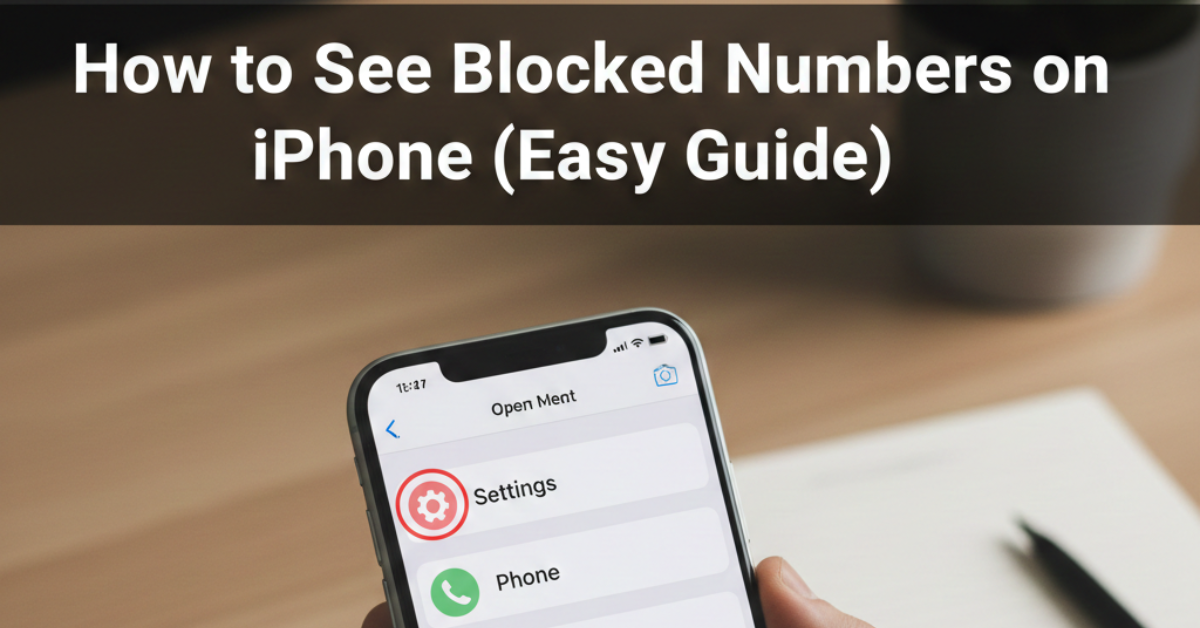
The main list of blocked contacts lives inside your Settings. Here’s how to access it:
Method 1: Check Blocked Numbers from Phone Settings
-
Open Settings.
-
Scroll down and tap Phone.
-
Tap Blocked Contacts (or Call Blocking & Identification on older iOS versions).
-
You’ll see a complete list of blocked phone numbers and contacts.
From here, you can review every number you’ve blocked for calls.
How to See Blocked Numbers for Messages and FaceTime
Blocked contacts sync across Apple services, but you can also check them individually.
Check Blocked Contacts in Messages
-
Open Settings.
-
Tap Messages.
-
Select Blocked Contacts.
Check Blocked Contacts in FaceTime
-
Go to Settings.
-
Tap FaceTime.
-
Tap Blocked Contacts.
Good to know: Apple uses one unified block list, so changes made in one place usually apply across calls, texts, and FaceTime.
How to Unblock a Number on iPhone
Found a number you want to restore? Here’s how to remove it from the blocked list:
-
Open Settings.
-
Tap Phone → Blocked Contacts.
-
Tap Edit in the top-right corner.
-
Tap the red minus (–) icon next to the number.
-
Tap Unblock.
Once unblocked, the person can call, text, and FaceTime you again.
How to Block a Number (If You Need It Again)
If you’re managing your list, you might want to add new numbers too.
From the Phone App
-
Open the Phone app.
-
Go to Recents.
-
Tap the (i) icon next to the number.
-
Scroll down and tap Block this Caller.
This helps you control unwanted calls, spam, or persistent telemarketers.
What Happens When You Block Someone?
Understanding the effects helps you manage your list better:
-
Blocked callers go straight to voicemail.
-
You won’t receive text messages from them.
-
FaceTime calls won’t come through.
-
The caller isn’t notified that they’ve been blocked.
This makes iPhone call blocking a quiet but effective privacy tool.
Tips for Managing Your Blocked List Efficiently
-
Review periodically: You may forget who you blocked months ago.
-
Clean up old entries: Especially if the number belonged to a business or temporary contact.
-
Use Silence Unknown Callers: Found under Settings → Phone to filter spam without blocking manually.
-
Consider spam-filter apps: Apps like Truecaller or carrier tools can reduce unwanted calls.
FAQs About Seeing Blocked Numbers on iPhone
1. Can I see blocked numbers directly in the Phone app?
No. The blocked list is only visible through Settings, not inside the Phone app itself.
2. Do blocked numbers appear in call history?
No. Calls from blocked numbers won’t show in your recent call list.
3. Will a blocked contact know they are blocked?
No. They won’t receive any notification.
4. Are blocked numbers synced across Apple devices?
Yes, if you’re signed into the same Apple ID with iCloud enabled.
5. Can I recover old messages after unblocking someone?
No. Messages sent while the number was blocked are not delivered later.
Conclusion
Learning how to see blocked numbers on iPhone takes less than a minute once you know where to look. Just head to Settings → Phone → Blocked Contacts to review, unblock, or manage your list. It’s a small feature, but it gives you full control over who can reach you.
Take a moment today to check your blocked list—you might find numbers you no longer need to keep there. And if you’re serious about cutting down unwanted calls, combine blocking with spam filtering and caller identification tools for maximum peace of mind.